Follow these steps to submit a Declaration of Intent to retain a judicial office. Note that all fields followed by a red asterisk * are required.
Getting Started
On the Candidate Filing main page, click the Judicial radio-button.

The Declaration of Intent screen appears showing Step 1: Select Judicial District.
Step 1: Select Judicial District
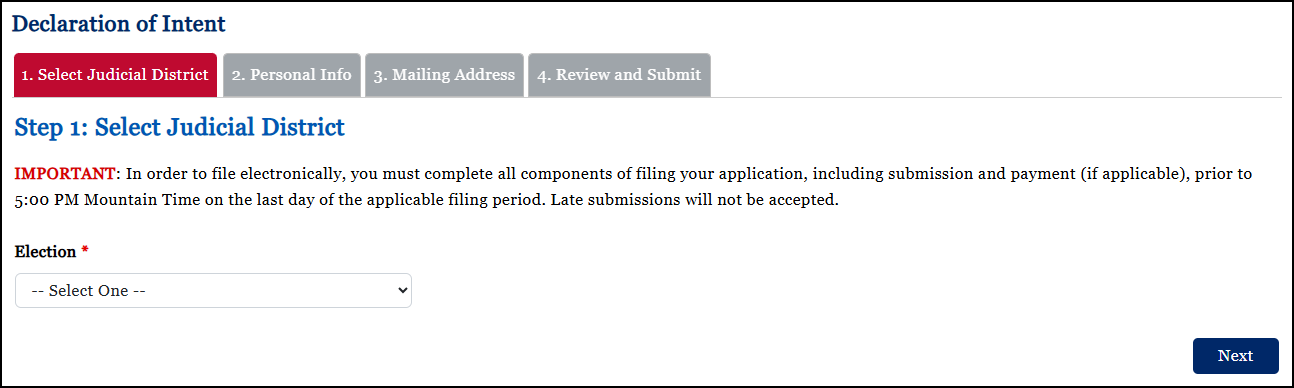
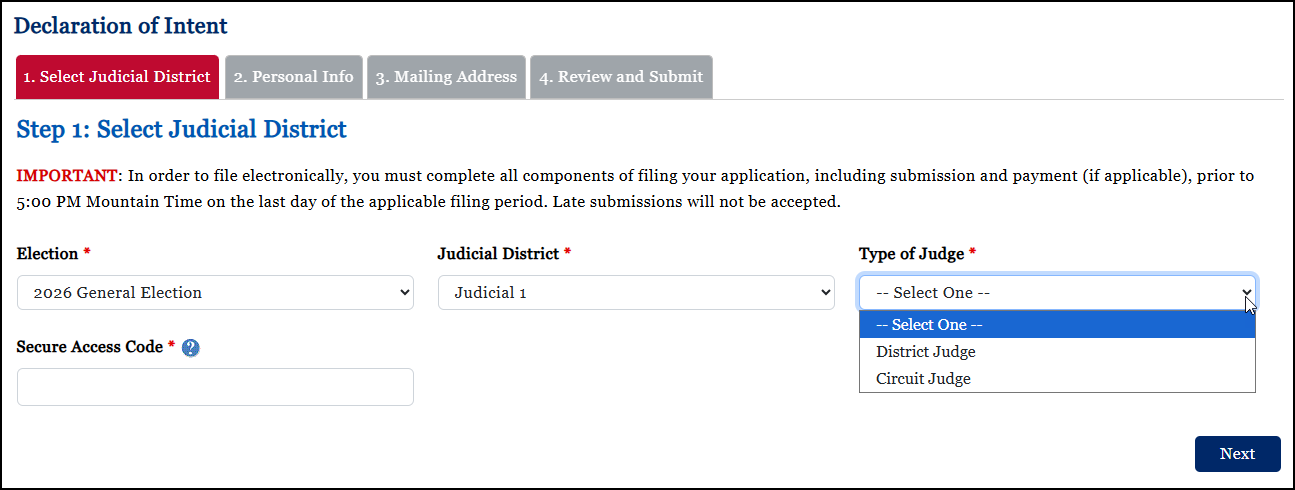
When you make a selection from the Election drop-down list, the Judicial District and Secure Access Code fields appear.
When the district selected from the Judicial District drop-down list has both district and circuit judges, the Type of Judge field appears.
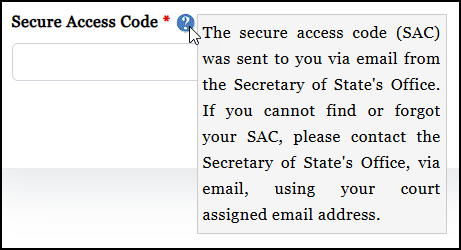
For more information about the Secure Access Code, click the  next to the field.
After all drop-down lists have selections and you have entered the Secure Access Code, click Next. The Step 2: Personal Information screen appears.
Step 2: Personal Information
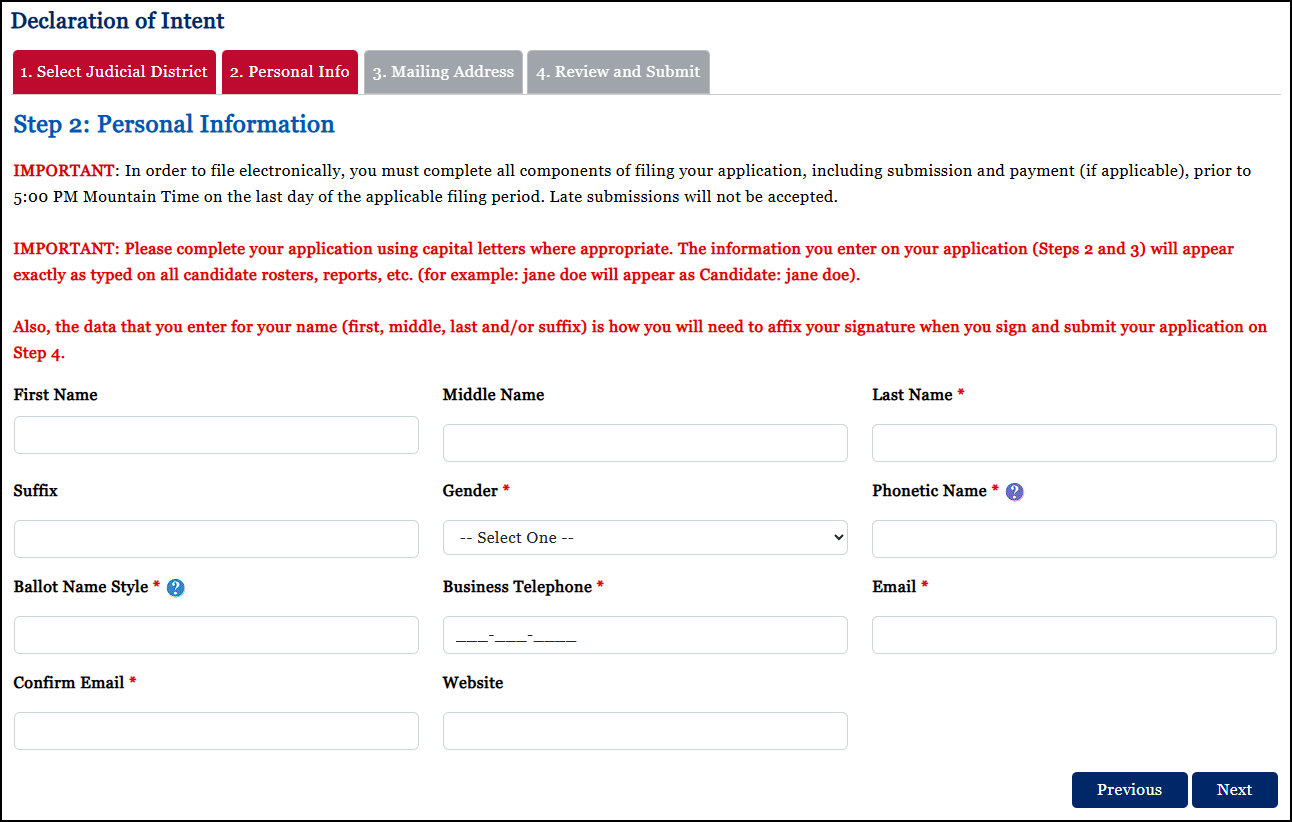
Fill in the Personal Information fields. All fields followed by a red asterisk * are required.
Note that all the data that you enter for your name (first, middle, last, and suffix) will be needed for your digital signature in Step 4.
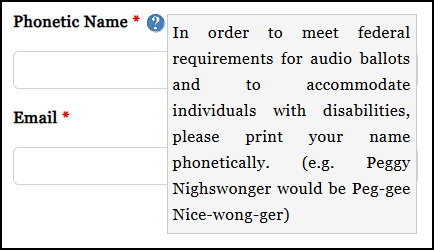
For more information about the Phonetic Name field, click the next to it.
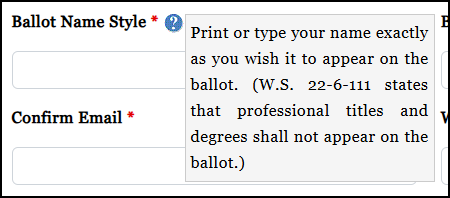
For more information about the Ballot Name Style field, click the next to it.
When you are finished entering information, click Next. The Step 3: Mailing Address screen appears.
Step 3: Mailing Address
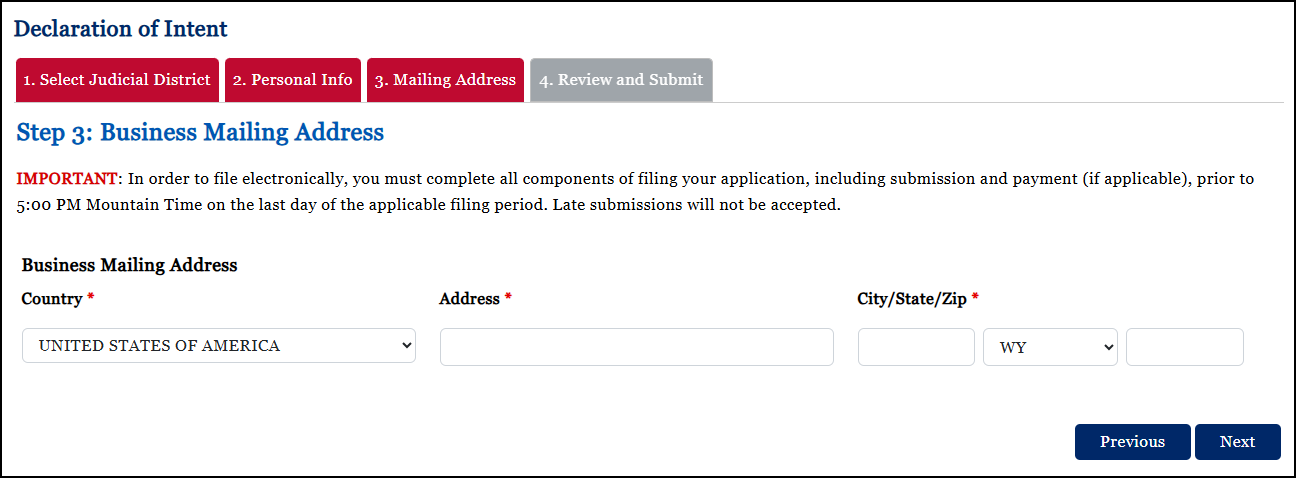
Fill in the Mailing Address fields. All fields are required.
When you are finished entering information, click Next. The Step 4: Review & Submit screen appears.
Step 4: Review & Submit
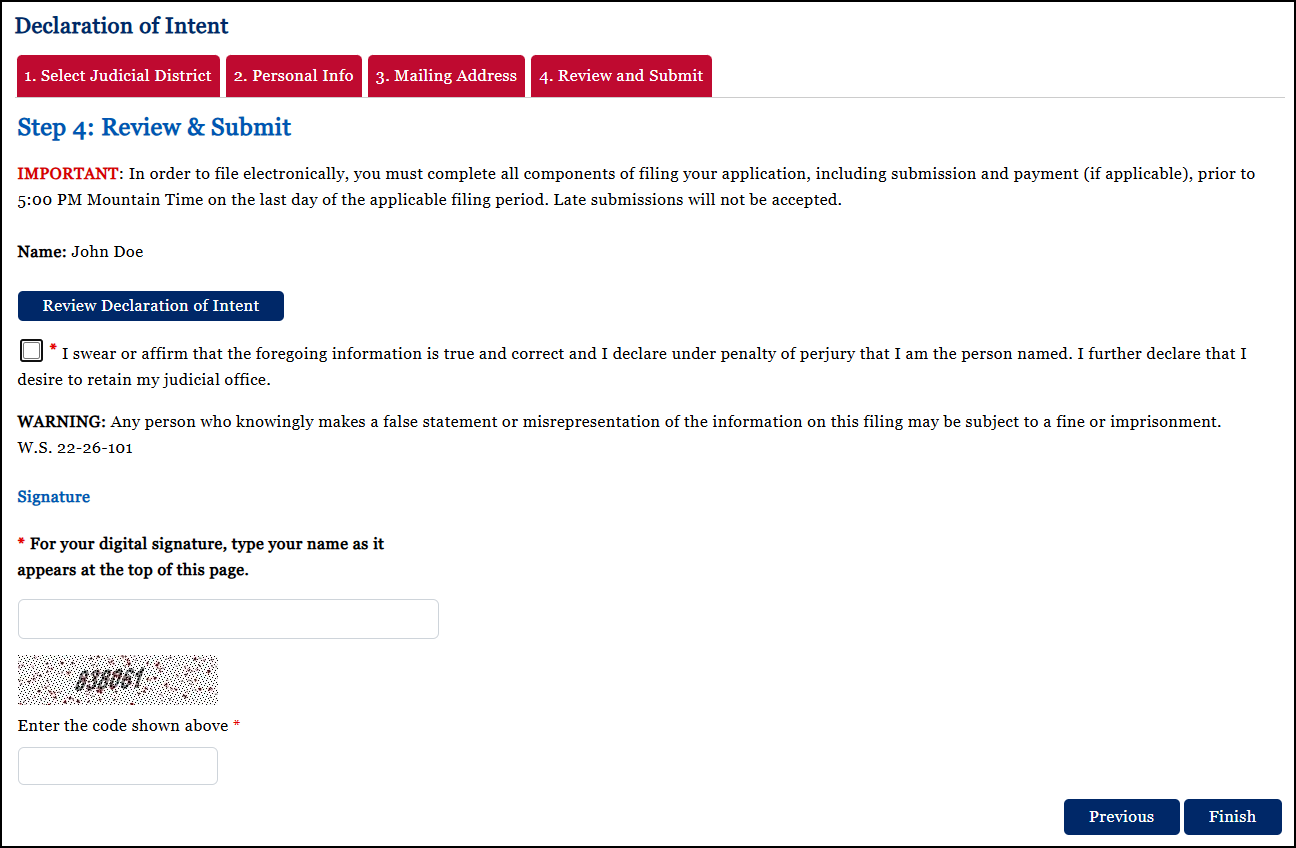
Fields followed by a red asterisk * are required.
Type your name into the Signature field exactly as it appears at the top of the page.
Click Review Declaration of Intent to view a PDF of the form.
Click Finish when you are done. The Submission Complete screen appears.

To view your submitted declaration, select the Print Declaration of Intent button. Otherwise, you may close the browser tab.