Follow these steps to submit an Application for Nomination as a write-in candidate. Note that all fields followed by a red asterisk * are required.
Getting Started
On the Candidate Filing main page, click the Write-In radio-button.

The Qualifications for Office screen appears.
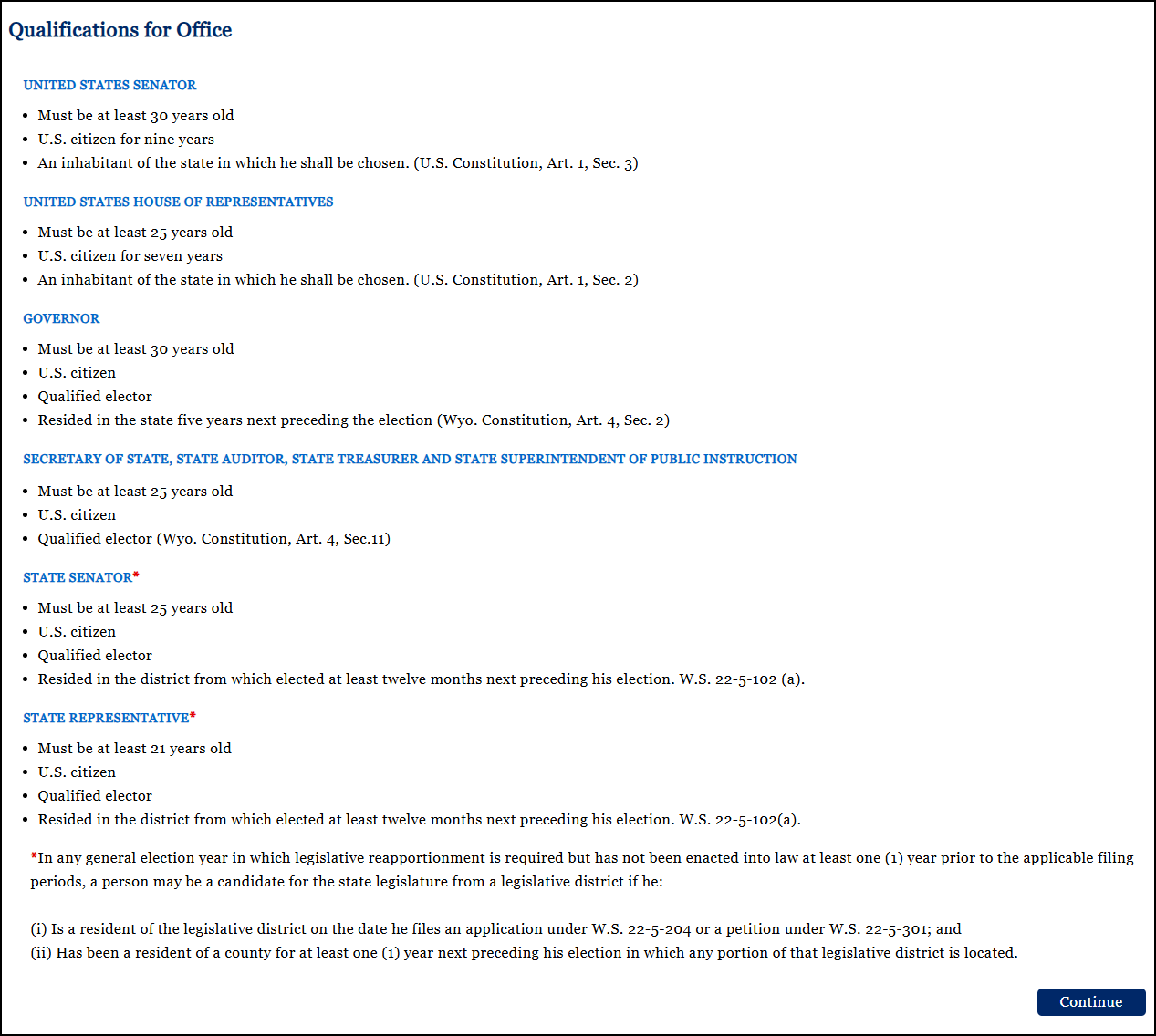
If you qualify for the office you are seeking, click Continue at the bottom of the page. The Application for Nomination page opens to Step 1: Select Office.
Step 1: Select Office
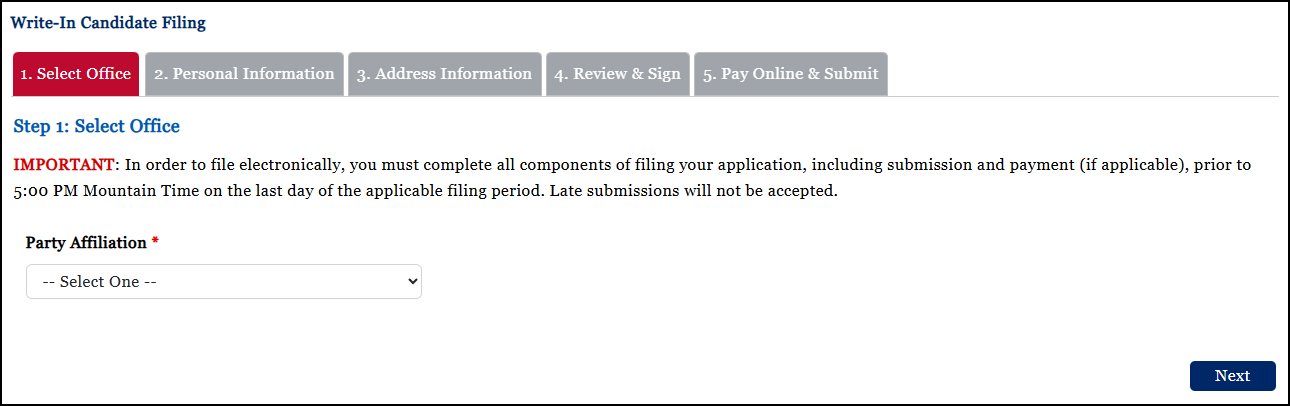
When you make a selection from the Party Affiliation drop-down list, the Election field appears.
When you make a selection from the Election drop-down list, the Office Sought field appears.
When you make a selection from the Office Sought drop-down list, the District field appears, if appropriate to the office.
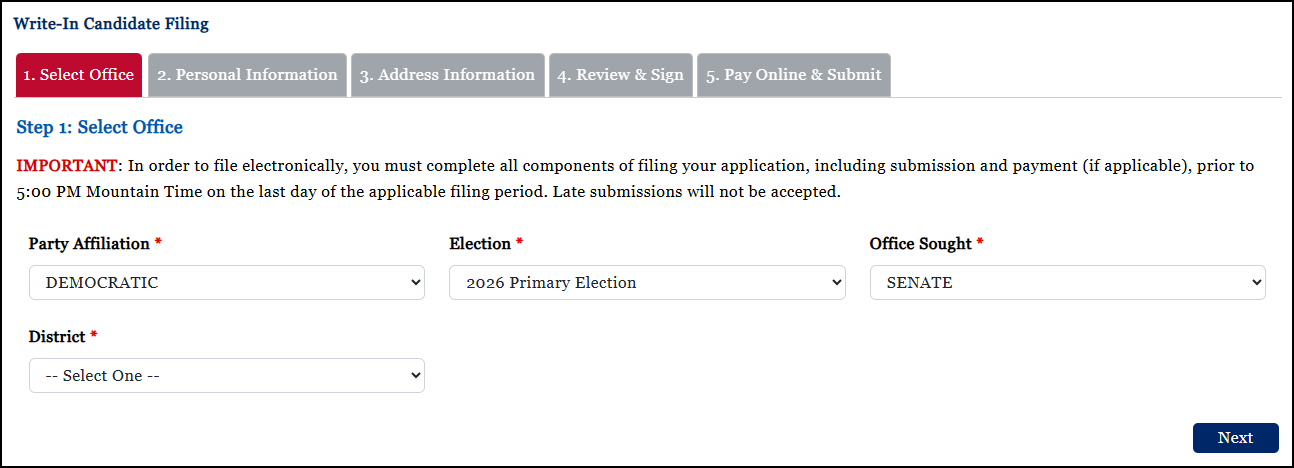
After all drop-down lists have selections, click Next. The Step 2: Personal Information screen appears.
Step 2: Personal Information
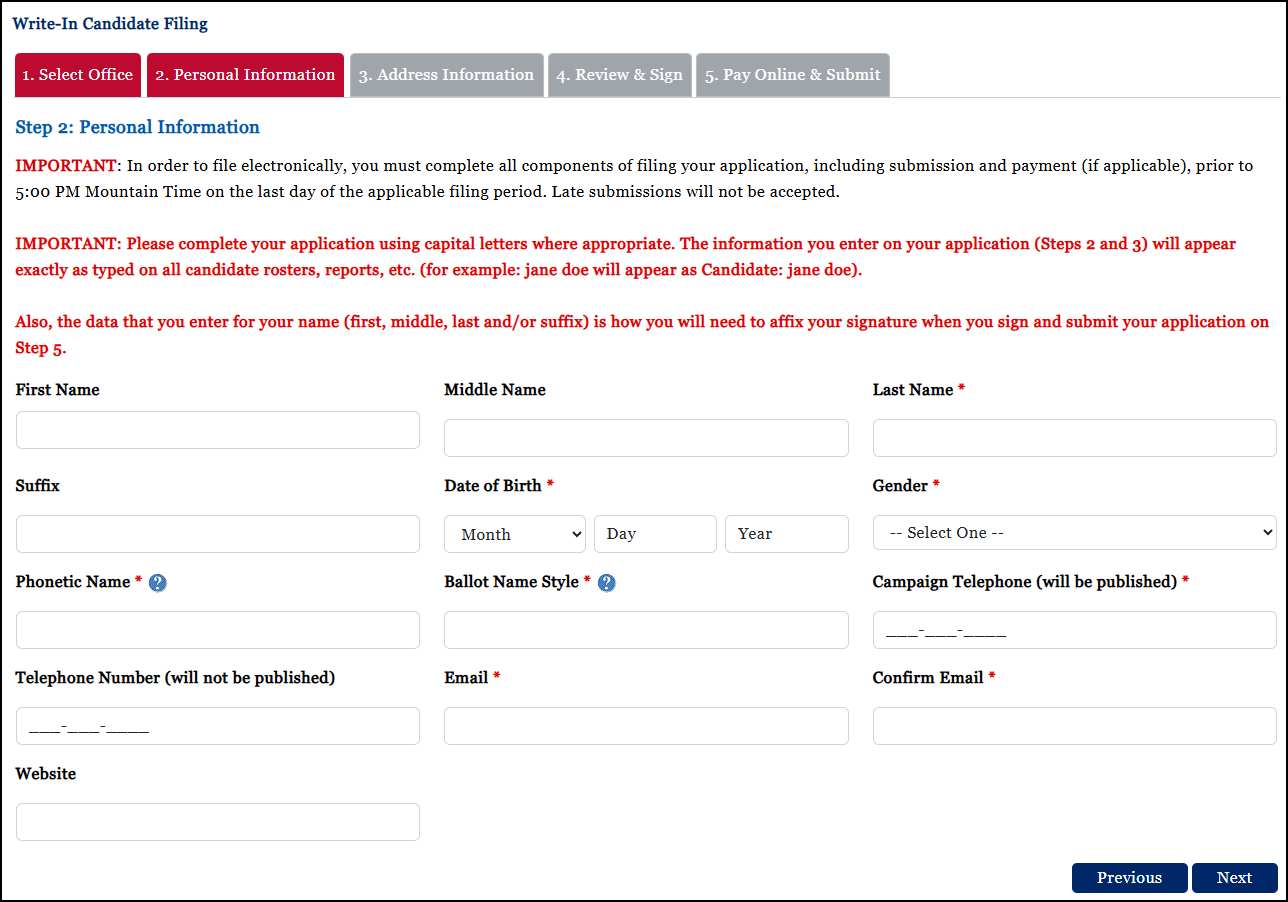
Fill in the Personal Information fields. All fields followed by a red asterisk * are required.
Note that all the data that you enter for your name (first, middle, last, and suffix) will be needed for your digital signature in Step 5.
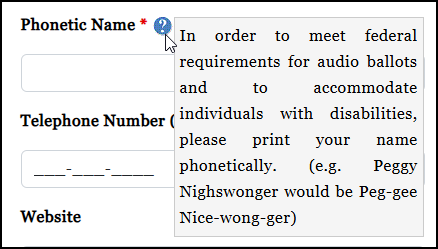
For more information about the Phonetic Name field, click the  next to it.
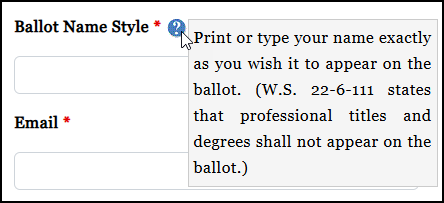
For more information about the Ballot Name Style field, click the next to it.
When you are finished entering information, click Next. The Step 3: Address Information screen appears.
Step 3: Address Information
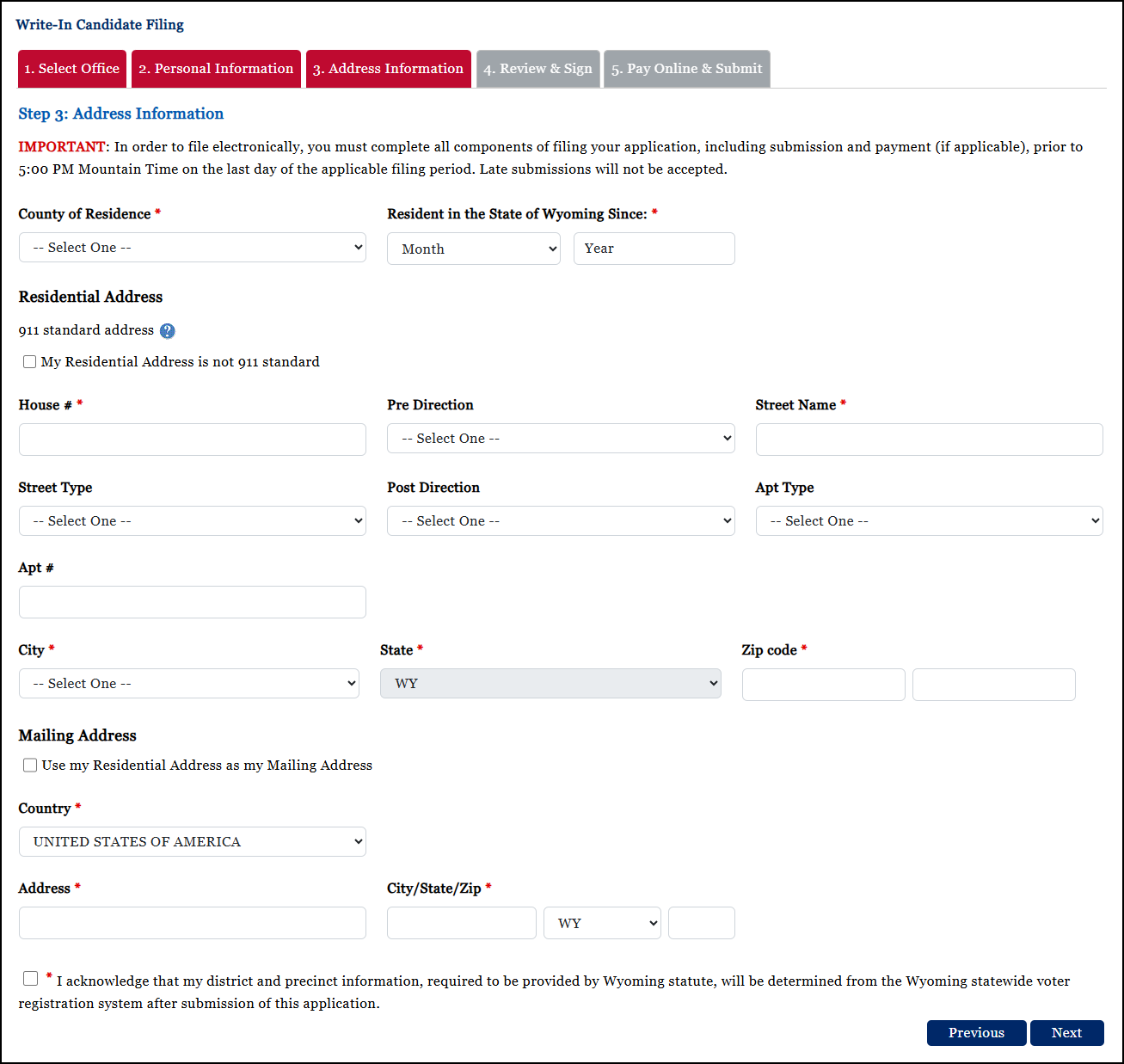
Fill in the Address Information fields. All fields followed by a red asterisk * are required.
Clicking Use my Residential Address as my Mailing Address copies the information over for you.
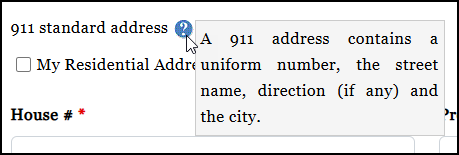
For more information about 911 standard address, click the .
When you are finished entering information, click Next. The Step 4: Review & Sign screen appears.
Step 4: Review & Sign
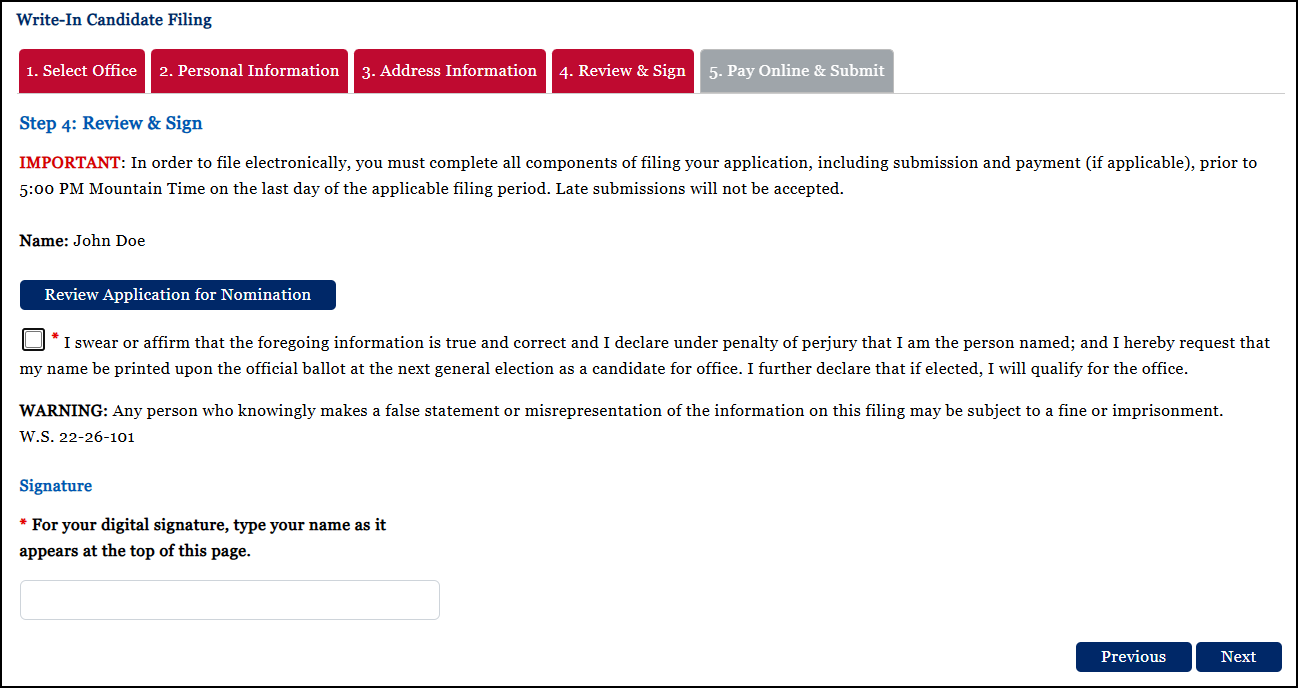
To review your application, select the Review Application for Nomination button. Your application will appear in a new window for review.
Read all statements that appear, and if true, select the required check box(es).
Type your name into the Signature field exactly as it appears at the top of the page.
When you are finished, click Next. The Step 5: Pay Online & Submit screen appears.
Step 5: Pay Online & Submit
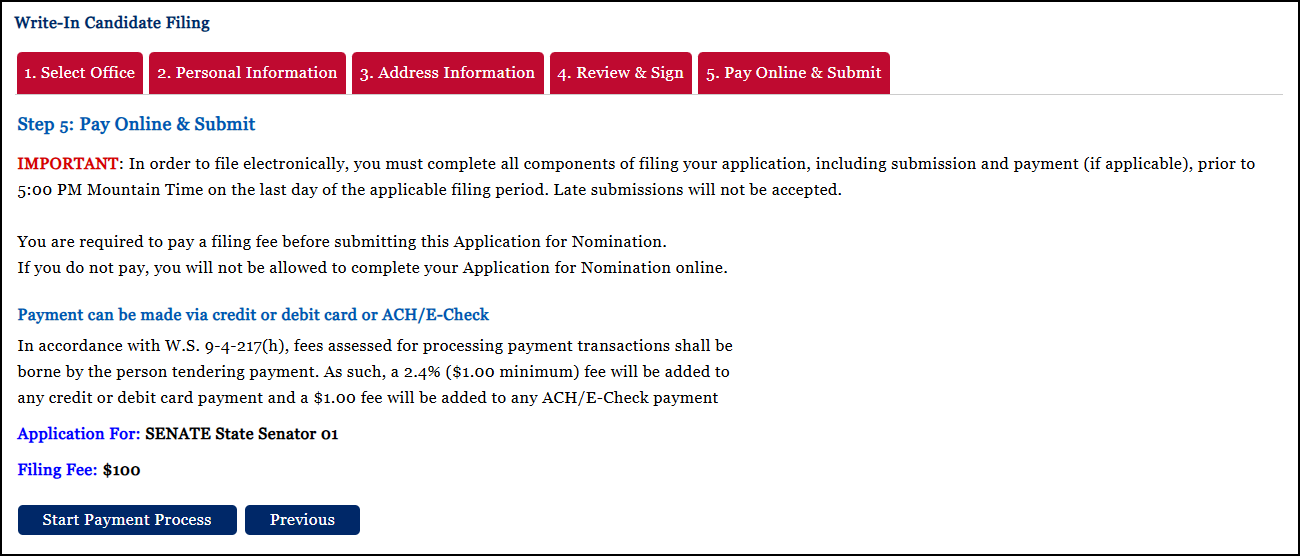
Click Start Payment Process to proceed to payment. A pop up will appear.
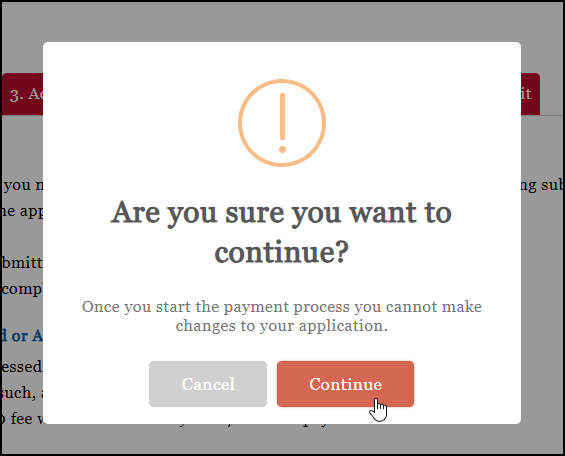
Select Continue. The Payment screen will open in a new browser tab.
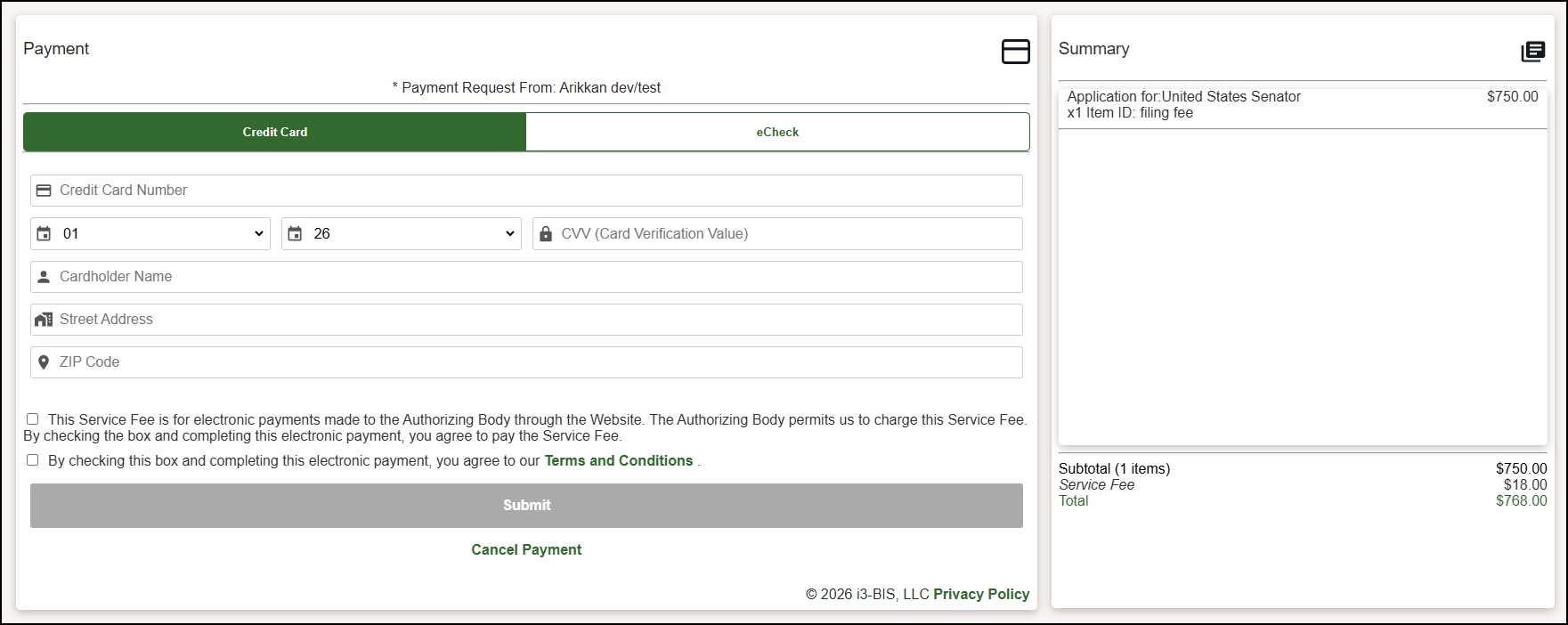
If paying with a credit card, enter your credit card information and billing address. If paying with an eCheck, select the eCheck tab and enter your banking information.
Select the two check boxes, then click Submit to finish. The Application for Nomination - Payment Receipt screen appears.
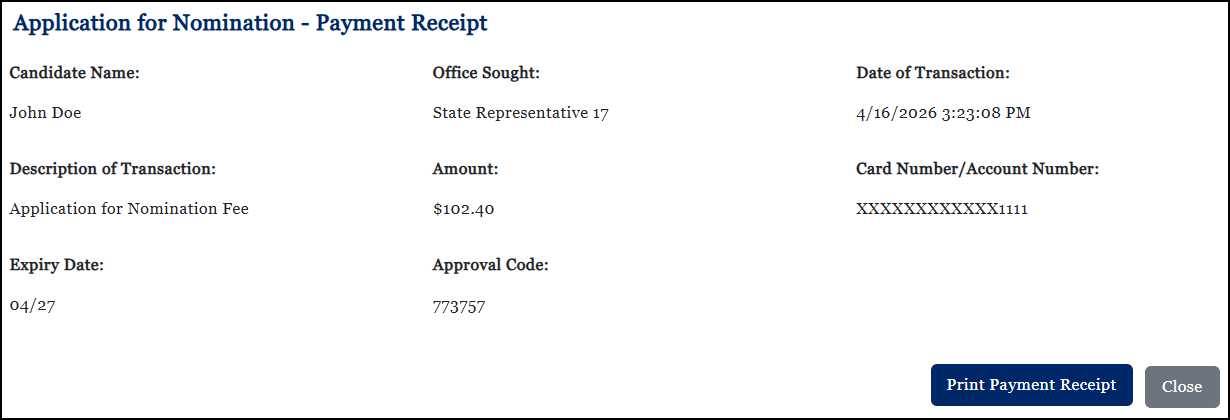
To print or save a PDF of the payment receipt, select Print Payment Receipt.
When you are finished select Close. The Payment browser tab will close and you will be returned to the original browser tab, which now says "Submission Complete".

To view your submitted application, select the Print Application for Nomination button. Otherwise, you may close the browser tab.